Disk Recon 14.1
Options
The Options screen lets you fine-tune Disk Recon's behaviour. Open it from the File menu, the toolbar, or the keyboard shortcut shown in the menu.
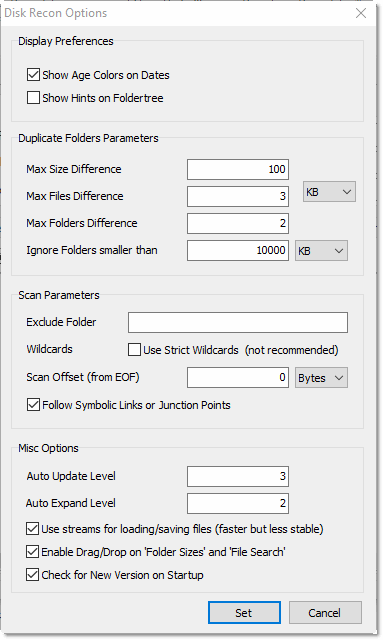
Show Age Colors
When enabled, folders in the Folder Sizes tree are colour-coded based on the age of the newest file inside them. This makes it easy to spot stale folders at a glance:
- Older than 2 years — blue
- Older than 4 years — brown
- Older than 6 years — red
Show Hints on Folder Tree
When enabled, hovering the mouse over a folder in the Folder Tree shows a tooltip with additional info such as total size and file count — useful without having to click and switch focus to the detail panel.
Treeview Root
Choose whether the Folder Tree starts at the Desktop (showing libraries, network locations, and drives) or just the Drives list for a simpler storage-focused view.
Duplicate Folder Parameters
These settings control how strictly the Duplicate Folders feature compares folders. Relaxing them lets you find near-duplicates where a few files differ:
- Max Size Difference — allows a given byte difference in total file size.
- Max Files Difference — allows a given difference in file count.
- Max Folders Difference — allows a given difference in subfolder count.
- Ignore folders smaller than — excludes tiny folders from the duplicate search to reduce noise.
Scan Parameters
- Exclude folders — folder names to skip entirely during any scan (e.g.
temp,~snapshot,.git). Separate multiple names with a semicolon. This matches by folder name only, not by full path — enteringtempskips every folder namedtempat any depth. Note: folder names that contain a semicolon cannot be excluded using this field. - Use Strict Wildcards — by default, a wildcard like
*.logmatches files namederror.logbut does not match files inside a folder whose name contains a dot (e.g.app.v2\error.log). Enable Strict Wildcards to make the dot-in-folder-name restriction apply consistently. Most users should leave this off; enable it only if your folder names contain dots and you are seeing unexpected matches. - Scan Offset — when searching for text inside files, start reading from this byte offset rather than the beginning of the file. For example, if you are scanning binary files with a fixed 512-byte header you want to skip, enter
512. Leave at0for all normal text searches.
Auto Expand Level
Sets how many folder levels are automatically expanded in the Folder Sizes tree after a scan completes. Level 1 shows only top-level folders; higher values expand deeper. Set to 0 to keep the tree fully collapsed after scanning.
Auto Update Level
Controls how often the Folder Sizes tree refreshes while a scan is in progress. A higher value means fewer UI updates, which can improve scan performance on very large folder structures.