Disk Recon 14.1
Find Duplicate Folders
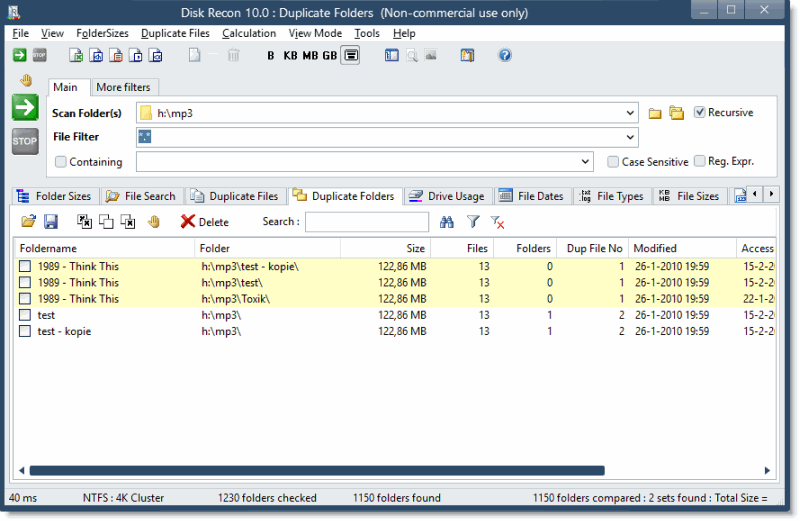
The purpose of this query type is to find duplicate folders on your disk.
Duplicate folders are folders with the same name and the same number of files (and total size of these files).
How Duplicate Folder Detection Works
First you will need to scan the folders with 'Folder Sizes'. Once this scan is complete you can run 'Duplicate Folders' to find the duplicates in your result set.
When Duplicate Folders Appear
Duplicate folder trees are common on shared drives where the same project or archive has been copied to multiple locations, or when backups are made by simply copying a folder structure rather than using a proper backup tool. Disk Recon helps you identify these copies so you can decide which ones to keep and which to remove.
Configuring Duplicate Folder Detection
By default, two folders are considered duplicates only when their names, total file sizes, and file counts are all identical. The Options screen lets you relax these criteria to catch near-duplicate folders where a few files may have been added, removed, or modified.
Duplicate Folder Parameters
These settings are configured in the Options screen under Duplicate Folder Parameters.
- Max Size Difference — the maximum allowed difference in total file size between two folders, in bytes. For example, a value of 10240 means two folders whose total sizes differ by up to 10 KB are still considered duplicates.
- Max Files Difference — the maximum allowed difference in file count. A value of 3 means a folder with 20 files and a folder with 17–23 files can still match.
- Max Folders Difference — the maximum allowed difference in subfolder count. Works the same way as Max Files Difference but applies to the number of subfolders rather than files.
- Ignore folders smaller than — folders whose total size is below this threshold are excluded from the search entirely. Useful for filtering out near-empty stub folders that would otherwise generate many false-positive matches.
Results are grouped into duplicate sets. Each set is assigned a number and a distinct background colour so you can tell at a glance which folders belong together.
Deleting duplicate folders
Each file on the result grid has a checkbox before it. The meaning of this checkbox is to mark files for deletion.
The toolbar above the grid shows several buttons that make your life easier.

- 'Load' button : load a results file. (drdfo file)
- 'Save' button : Save a results file. (drdfo file)
- 'Mark All Folders' : Marks all folders from the list
- 'Unmark All Folders' : Unmarks all folders from the list
- 'Invert Marked Items' : Inverts all the marks from the list (marked becomes unmarked etc)
- 'Hand button' : Check whether the folders from the list still exist. Deleted folders will be displayed in another background color.
- 'Delete' button : Delete all Folders that are marked.
- 'Search' button : Search the list for any paths that contain the wanted text.
- 'Filter' button : Allows you to enter a text and filter only on those duplicate pairs that contain the selected text in their path.
- 'Clear Filter' : Clears the filter so that all results are shown again
Additional Info
- Reporting : The Duplicate Folder statistics can easily be dumped to various report types (xls, html, txt, xls, csv) by pressing the appropriate button in the menubar.
- Context Sensitivity Menu : By right clicking on the file list or the folder tree you can pull up context sensitive menus, which allow you to perform standard actions on the selected items.
- Cancelling : If you cancel the 'Find Duplicate Folders' query Disk Recon will simply stop the whole process and will not search for any more duplicate folders.
Disk Recon also adds a few custom items on the context menu:
- Explore Containing Folder : opens a file explorer on this folder
- Open Command Window here : Opens a CMD windows starting on this folder
- Set as 'Scan Folder' : Replaces the scan folder with this folder
- Copy File name to clipboard : Copies the full filename (with path) to the clipboard