Disk Recon 14.1
Find Duplicate Files — Reclaim Disk Space
The purpose of this query type is to find duplicate files on your disk.
The term 'Duplicate files' can be interpreted in different ways:
- Files with the same name
- Files with the same name and same size and/or same date
- Files with the same contents
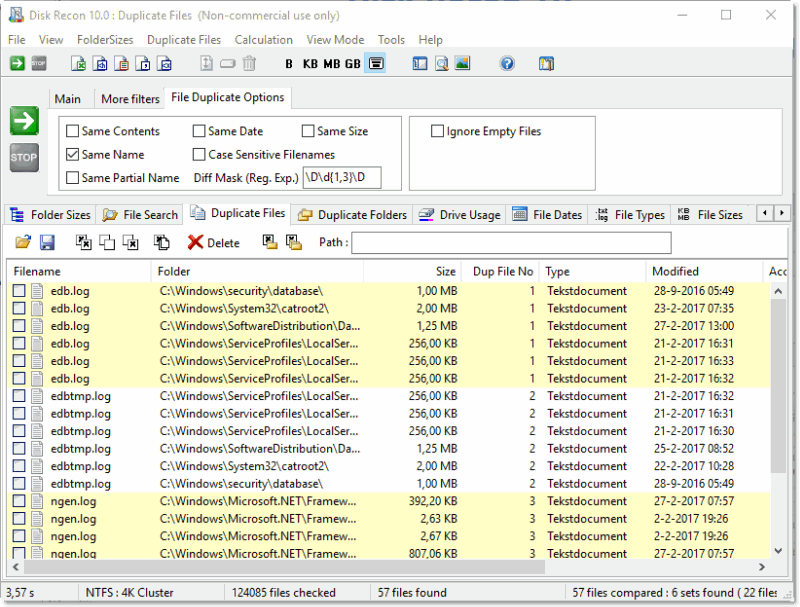
How Duplicate Detection Works
Disk Recon will scan the folder(s) you selected and internally create a list of all the file that match your criteria. Within this list Disk Recon determines with a highly optimized algorhythm which files are considered duplicate according to your settings.
Recovering Disk Space from Duplicate Files
I can tell you from experience that a lot of computers or even network servers are coping with storage problems. The amount of data that needs to be stored gets bigger and bigger. Even in a single user environment, but especially in a multi-user environment there always tend to be a lot of files (reports, presentations, movies) that are stored multiple times on the same disk drive, which of course eats away lots of precious disk space.
Disk Recon helps you locate these duplicate files and lets you optionally clean them up.
Duplicate Search Settings
By playing with the settings of the control panel, you can let Disk Recon act in different ways.
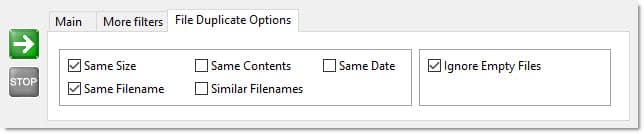
If you want to find completely identical files, you need to check the 'Same contents' Checkbox. This will cause Disk Recon to do a CRC32 check on files with the same size and if these 2 CRC numbers are the same, you can be 100% sure that the files are identical. The only disadvantage of this method is that it's slower than just name- and size- and date-checking. Even if the contents of two files are identical, they can still have different names or dates. Disk Recon allows you to combine different 'duplicate criteria'.
Empty files will always generate the same CRC checksum, so you might consider this identical files. They might however not be related at all to each other and I personally prefer not to include them in my result set. Disk Recon lets you choose whether or not you want to include these 0-byte files to your duplicates list.
The result set will consist out of 'duplicate sets'. Each set is given a number so you can identify it more easily, and so that they can be sorted in a clear way. Each set will also have a different background color.
Deleting duplicate files
Each file on the result grid has a checkbox before it. The meaning of this checkbox is to mark files for deletion.
The toolbar above the grid shows several buttons that make your life easier.

- 'Load' button : load a results file. (drdfo file)
- 'Save' button : Save a results file. (drdfo file)
- 'Mark All Folders' : Marks all folders from the list
- 'Unmark All Folders' : Unmarks all folders from the list
- 'Invert Marked Items' : Inverts all the marks from the list (marked becomes unmarked etc)
- 'Mark Duplicates' : Mark all duplicate files automatically. The topmost item of a duplicate set will remain unmarked.
- 'Delete' button : Delete all Folders that are marked.
- 'Search' button : Search the list for any paths that contain the wanted text.
- 'Filter' button : Allows you to enter a text and filter only on those duplicate pairs that contain the selected text in their path.
- 'Clear Filter' button : Clears the filter so that all results are shown again
The next button lets you select all the files from the same folder and the last button is a recursive version of this one.
All these buttons have hints that you can see when you hover the mouse cursor over them. This can help you identify the functionality of these buttons very easily.
Additional Info
- Reporting : The Duplicate File statistics can easily be dumped to various report types (xls, html, txt, xls, csv) by pressing the appropriate button in the menubar.
- Context Sensitivity Menu : By right clicking on the file list or the folder tree you can pull up context sensitive menus, which allow you to perform standard actions on the selected items.
- Cancelling : If you cancel the 'Find Duplicates' query Disk Recon will simply stop the whole process. In other words, if Disk Recon has gathered info about 50000 of the 70000 files and you press the 'Cancel' button, it will not try to find duplicates among those 50000 files.
Disk Recon also adds a few custom items on the context menu:
- Explore Containing Folder : opens a file explorer on this folder
- Open Command Window here : Opens a CMD windows starting on this folder
- Set as 'Scan Folder' : Replaces the scan folder with this folder
- Copy File name to clipboard : Copies the full filename (with path) to the clipboard