X-Fonter 14.0.3
X-Fonter Screen Layout Overview
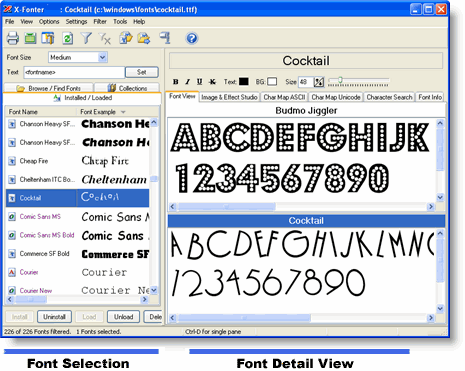
The X-Fonter screen layout is designed to give you full control over your fonts. The interface is divided into two main panels that allow you to quickly browse, preview and manage fonts on your Windows system.
Main Interface Sections
The X-Fonter interface consists of two primary areas:
- Left panel: Font Selection Panel — browse, search and organize your fonts
- Right panel: Font Detail View — preview fonts, inspect characters and view detailed font information
Each panel contains multiple tabs that provide access to advanced features such as font previews, character maps, collections and detailed font metadata.
Customizing the Layout
X-Fonter allows you to fully customize the layout to match your workflow. You can resize both panels by dragging the splitter between them.
If you need more overview when browsing fonts, expand the Font Selection Panel to display additional columns and font properties.
If you focus more on design and previewing, enlarge the Font Detail View. This gives you more space for:
- Font preview and sample text
- Character maps (ASCII and Unicode)
- Image & Effects Studio
Your preferred layout settings are automatically saved and restored when you restart X-Fonter.
Show or Hide Panels
For maximum flexibility, you can completely hide either panel:
- Hide Font Selection Panel → CTRL + F1
- Hide Font Detail View → CTRL + F2
You can also toggle panels using the View menu. This is especially useful when working on smaller screens or when focusing on a specific task.
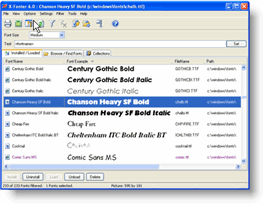
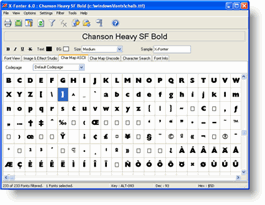
Optimized Workflow for Font Management
By adjusting the layout, you can create a workflow that fits your needs:
- Quick browsing and sorting of large font collections
- Detailed inspection of font properties and glyphs
- Efficient comparison between fonts
The flexible interface makes X-Fonter one of the most powerful and user-friendly font managers for Windows.
Copyright © 2001-2026 Blacksun Software. All Rights Reserved