X-Fonter 14.0.3
Font Actions Overview
Font actions are the operations you can perform on one or more selected fonts — installing them into Windows, loading them temporarily, organising them into collections, copying or moving the files, adding tags, and more. This page gives an overview of every available action and how to invoke it. Each action is covered in more depth on its own dedicated page, linked from the table below.
How to Invoke an Action
All font actions work on whichever fonts are currently selected in the Font Selection Panel. There are two ways to trigger them:
- Toolbar buttons — the action buttons run along the bottom of the font list. Click a button to apply that action to all selected fonts immediately.
- Right-click context menu — right-click any selected font to open the popup menu, then choose the action you want. The context menu includes every available action and is the most complete way to access all options.
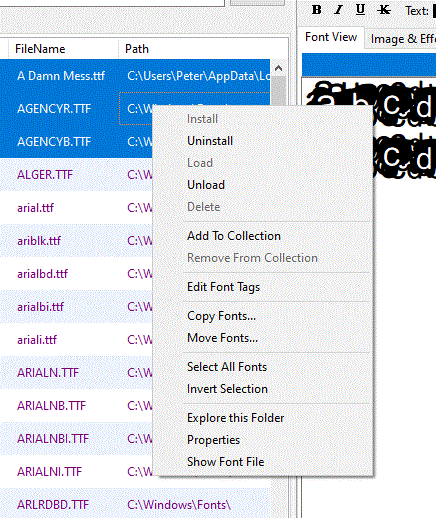
Tip: You can select multiple fonts before triggering an action.
Use Shift+Click to select a contiguous range, or Ctrl+Click
to add individual fonts to the selection — the same behaviour as Windows Explorer.
The action will then be applied to all selected fonts in one step.
Available Actions
| Action | What it does | More detail |
|---|---|---|
| Install | Permanently registers the font with Windows so it is available in all applications at all times, even after a restart. The font file is copied into the Windows Fonts folder. | Installing & Loading Fonts |
| Uninstall | Removes a permanently installed font from Windows. The font will no longer appear in application font menus. The original file is not deleted — only the Windows registration is removed. | Installing & Loading Fonts |
| Load | Makes a font temporarily available to all running Windows applications without permanently installing it. The font is active until X-Fonter closes or you explicitly unload it. Useful for trying a font in a design application before committing to installation. | Installing & Loading Fonts |
| Unload | Deactivates a temporarily loaded font. The font is removed from application font menus immediately. Does not affect permanently installed fonts. | Installing & Loading Fonts |
| Add to Collection | Assigns the selected fonts to one or more Collections. A collection is a named group you define — by project, client, style, or any other scheme. Adding a font to a collection does not move the file. | Managing Collections |
| Remove from Collection | Removes the selected fonts from the current collection. The font files remain on disk and in any other collections they belong to. | Managing Collections |
| Copy | Copies the selected font files to a different folder on disk. The originals remain in place. Useful for consolidating fonts into a project folder or making a backup. | Copy & Move Fonts |
| Move | Moves the selected font files to a different folder. The files are removed from their original location. X-Fonter updates any collection references that pointed to the old path. | Copy & Move Fonts |
| Delete | Permanently deletes the selected font files from disk. If the fonts are currently installed or loaded, X-Fonter uninstalls or unloads them first. Deleted files are sent to the Windows Recycle Bin unless you hold Shift during deletion. | Organizing Fonts |
| Add / Edit Tags | Attaches keyword tags to the selected fonts — for example, sans-serif, display, or client-acme. Tags provide a flexible alternative to collections for categorising fonts and can be used to filter the font list. | Font Tagging |
| Rename | Renames the font file on disk using the Font Renamer tool, which can generate a new filename based on the font's internal name, style, or other properties. | Font Renamer |
| Open File Location | Opens the folder containing the selected font file in Windows Explorer, with the file pre-selected. Useful for quickly locating where a font lives on disk. | — |
When Buttons are Disabled
X-Fonter enables only the actions that are valid for the current selection. A button or menu item will be greyed out when:
- The action is not applicable — for example, Install is disabled if the selected font is already installed, and Unload is disabled if the font is not currently loaded.
- The font file location cannot be determined — this can happen with some fonts that were loaded by another application or registered in Windows without a resolvable file path. In this case X-Fonter can display and preview the font but cannot act on its file, so most buttons will be disabled.
- No fonts are selected — all action buttons remain disabled until at least one font is selected in the list.
Note: The Delete action permanently removes font files
from disk. If you only want to stop using a font without deleting it, use
Uninstall (for permanently installed fonts) or Unload (for
temporarily loaded fonts) instead.
Related Topics
- Installing & Loading Fonts — detailed guide to the difference between installing and loading, and when to use each
- Managing Collections — adding, removing and organising fonts in collections
- Copy & Move Fonts — copying and moving font files between folders
- Font Tagging — attaching keywords to fonts for flexible categorisation and filtering
- Organizing Fonts — broader strategies for keeping a large font library manageable
- Font Selection Panel — how to select fonts and navigate the font list before applying actions
Copyright © 2001-2026 Blacksun Software. All Rights Reserved