X-Fonter 14.0.3
Print Preview
The Print Preview window lets you inspect exactly how your font printout will look on paper before sending it to the printer. You can browse every page, zoom in to check fine detail, and print individual pages directly from the preview without returning to the print dialog.
To open Print Preview, click the Print Preview button in the print dialog rather than the Print button. You can also access it directly from the File menu.
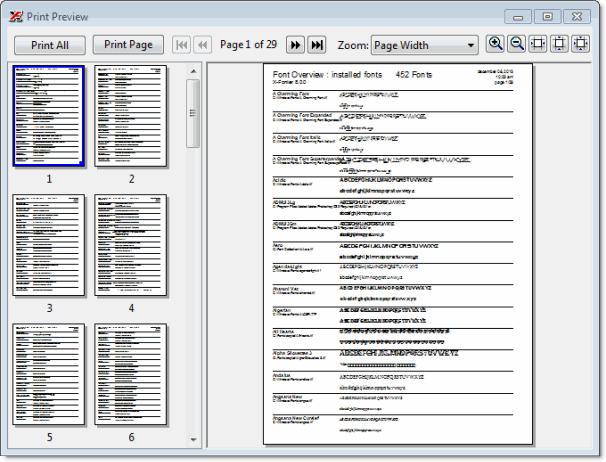
The Preview Layout
The window is divided into two panels:
- Thumbnail strip (left) — shows a small thumbnail of every page in the report. Click any thumbnail to jump straight to that page in the main view. You can drag the divider between the panels to make the thumbnail strip wider, which lets you see more thumbnails simultaneously and is useful for longer reports with many pages. Scroll the strip up and down to reach pages not currently visible.
- Main page view (right) — displays the currently selected page at the zoom level set in the toolbar. This is where you check that sample text is rendering correctly, that spacing looks right, and that nothing is being cut off at the page margins.
Toolbar Controls
| Control | What it does |
|---|---|
| Print All | Sends the entire report to the printer — all pages, using the printer and settings chosen in the print dialog. Use this once you are satisfied with the preview. |
| Print Page | Prints only the page currently displayed in the main view. Useful when you only need one specific page from a longer report — for example, the page that contains a particular font you want to show a client. |
| First / Previous / Next / Last | Navigate through the pages of the report. The current page number and total page count are displayed between the Previous and Next buttons. |
| Zoom level | Controls how large the page is displayed in the main view. The available levels are 25%, 50%, 100%, 150%, 200%, 300%, Page Width, Page Height, and Whole Page. Page Width and Page Height scale the view to fit the main panel horizontally or vertically respectively; Whole Page shows the complete page scaled to fit both dimensions at once. |
Going Back to Adjust Settings
If the preview reveals a problem — too many fonts per page, sample text that is cut off, or a character map range that is not what you intended — close the Print Preview window and return to the print dialog to adjust your settings. The dialog retains all your previous settings so you only need to change what requires fixing.
Related Topics
- Printing Fonts — the print dialog where you configure fonts, report type, sample text, size and options before opening the preview
- Font Overview Printout — what the Font Listing report looks like and what it contains
- Character Map Printout — what the Character Map report looks like and what it contains
Copyright © 2001-2026 Blacksun Software. All Rights Reserved