X-Fonter 14.0.3
Font Collections
A Collection is a named group of fonts that you define yourself. Collections let you organise your font library into logical sets — by project, client, style, or any scheme that suits your workflow — without touching the font files on disk. The fonts can live anywhere: a local folder, a network share, or even a removable drive.
You can load or unload an entire collection in one click, making it easy to keep only the fonts you need active at any given time and avoid cluttering your application font menus. The Collections tab is where you create, select, and manage all your collections.
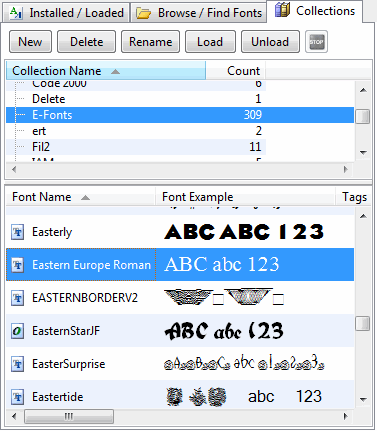
The Collections Tab Layout
The tab is split into two panels stacked vertically:
- Collections panel (top) — lists every collection you have created, showing its name and the number of fonts it contains. Click a collection to select it.
- Font list (bottom) — shows all fonts assigned to the selected collection. This list works the same way as the font lists in the Browse and Installed tabs: click a font to preview it in the Font Detail panel, double-click to open it in Font View, and right-click for a full context menu of actions.
Collection Toolbar Buttons
| Button | What it does |
|---|---|
| New | Creates a new, empty collection. You will be prompted to enter a name. See Naming Collections below for character restrictions. |
| Delete | Removes the selected collection entirely. This does not delete the font files — only the collection record is removed. The fonts remain on disk exactly where they were. |
| Rename | Changes the name of the selected collection. The same naming rules apply as when creating a new one. |
| Load | Loads (activates) every font in the selected collection, making them available to all running Windows applications. Fonts that are already loaded or installed are skipped automatically. |
| Unload | Unloads (deactivates) every font in the selected collection. Fonts that were permanently installed rather than temporarily loaded are not affected. |
| Stop | Cancels a load or unload operation that is in progress. Useful for very large collections where you want to abort part-way through. |
Creating Your First Collection
- Click New in the collections toolbar and enter a name for your collection (for example, Wedding Project or Script Fonts).
- The new collection appears in the top panel, currently empty.
- Switch to the Browse tab or the Installed tab and select the fonts you want to add.
- Right-click the selection and choose Add to Collection, then pick your new collection from the submenu.
- Return to the Collections tab — your fonts now appear in the bottom panel.
Loading and Unloading a Collection
Loading a collection makes all its fonts temporarily available to every application currently running on Windows — they will appear in font menus straight away without a restart. The fonts are not permanently installed; they are unloaded automatically when X-Fonter closes, or when you unload them manually.
To load a collection:
- Select the collection in the top panel.
- Click Load. A progress indicator shows how many fonts have been activated.
- Switch to your design application — the fonts are immediately available.
To unload, select the same collection and click Unload. Any fonts from the collection that are currently in use in an open document will continue to display correctly for that session, but will not be available in font menus once unloaded.
Naming Collections
Collection names are saved as filenames on disk, so standard Windows filename rules apply. The following characters cannot be used in a collection name:
? : * "
\ / |
< >
Spaces, hyphens, underscores and parentheses are all fine. Names are case-preserving but not case-sensitive on Windows.
Common Scenarios
Managing fonts for multiple clients
Create one collection per client (for example, Acme Corp and Smith Agency). Add each client's licensed fonts to their respective collection. When switching between projects, unload the previous client's collection and load the new one — your font menus stay clean and only the relevant fonts are active.
Keeping a "working set" for a project
As you shortlist fonts during the design phase, add them to a project collection. Load the whole collection once at the start of your session so every shortlisted font is always a click away, without having to permanently install any of them.
Organising a large font library by style
Create collections such as Serif, Display, Handwriting and Monospace. Use the Browse tab with Include Subfolders to scan your library, then multi-select and add fonts to the appropriate collection. You can add the same font to more than one collection — collections are not mutually exclusive.
Related Topics
- Managing Collections — detailed instructions for adding, removing and importing fonts into collections
- Installing & Loading Fonts — the difference between loading a font temporarily and installing it permanently
- Browse & Find Fonts — find uninstalled fonts to add to a collection
- Font Tagging — an alternative way to categorise fonts using keywords rather than groups
- Font Filtering — narrow down the font list inside a collection by type, name, or other criteria
Copyright © 2001-2026 Blacksun Software. All Rights Reserved