X-Fonter 14.0.3
Font Filtering
When X-Fonter starts, no filters are active and the full font list is shown for the current tab (Installed, Browse, or Collections). Font filtering lets you narrow that list down to only the fonts that match criteria you care about — font type, style, name, character support, Unicode range, or embedding rights.
X-Fonter offers one of the widest arrays of filter options available in any font management tool, with six independent filter tabs that can be combined in any combination.
Opening the Filter Screen
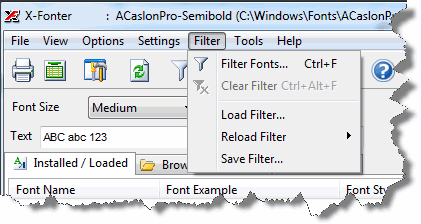
There are three ways to open the filter screen:
- Select Filter Fonts from the menu bar.
- Press the keyboard shortcut Ctrl+F.
- Click the Filter button in the toolbar.

How Filters Work
The filter screen contains six tabs, one for each filter category. Within each tab, checkboxes let you include or exclude specific values. The rules for combining selections are:
- Within a tab: selections use an OR relationship by default — checking TrueType and OpenType on the Font Type tab shows fonts that are TrueType or OpenType.
- Between tabs: active filters across different tabs are always combined with AND — a font must satisfy every active tab's criteria to appear in the list.
- Character Set and Unicode Pages tabs let you switch the within-tab relationship to AND using the AND checkbox on those tabs, so you can require fonts to support multiple character sets simultaneously.
Clearing Filters
To remove all active filters and return to the full font list:
- Select Clear Filter from the menu bar.
- Press Ctrl+Alt+F.
- Click the Clear Filter button in the toolbar.
The Clear Filter button and menu item are greyed out when no filters are active.
Saving and Reloading Filters
If you apply the same set of filters regularly, you can save them to a named file and reload them with a single click. X-Fonter stores each saved filter in its own file, which you name yourself. The most recently used saved filters appear in a quick-access list so you can reactivate them instantly without opening the filter screen again.
The Six Filter Tabs
Tab 1 — Names
Filter by font name or part of a name. Type a search term and X-Fonter narrows the list to fonts whose name contains that text. This is useful when you know the font family name but do not want to scroll through hundreds of entries to find it. The search is case-insensitive and matches anywhere within the name.
Tab 2 — Font Family
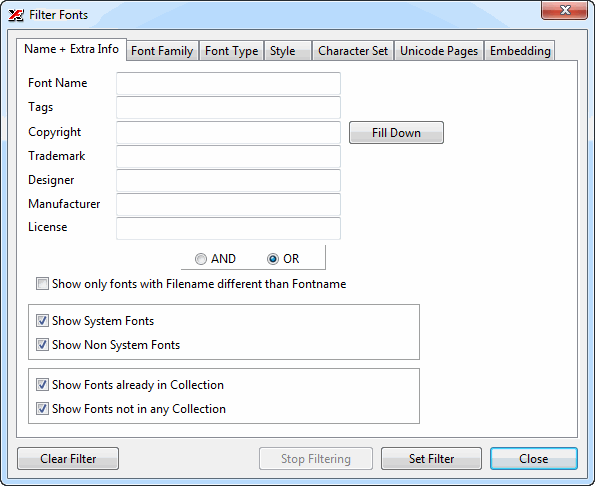
Filter by font family classification. Font families group related typefaces by their broad visual category — such as Roman, Swiss, Decorative, Script, and others. Check one or more families to show only fonts belonging to those categories. This is particularly useful for quickly isolating serif fonts, sans-serif fonts, or symbol/dingbat fonts from a large mixed library.
Tab 3 — Font Type
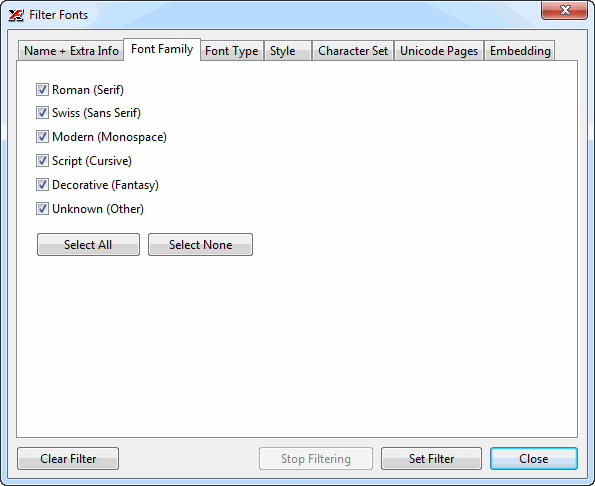
Filter by the technical format of the font file. X-Fonter supports several font types, and you can filter to show only the formats relevant to your work:
- TrueType — the most common format on Windows; files with a
.ttfextension. - OpenType — the modern cross-platform format; files with a
.otfextension. Includes both TrueType-flavoured and PostScript-flavoured OpenType. - PostScript Type 1 — an older format used in professional
publishing; requires a separate metrics file (
.pfm/.pfb). - Raster — bitmap fonts designed for a specific pixel size;
files with a
.fonextension. - Vector — Windows vector fonts, also with a
.fonextension but scalable.
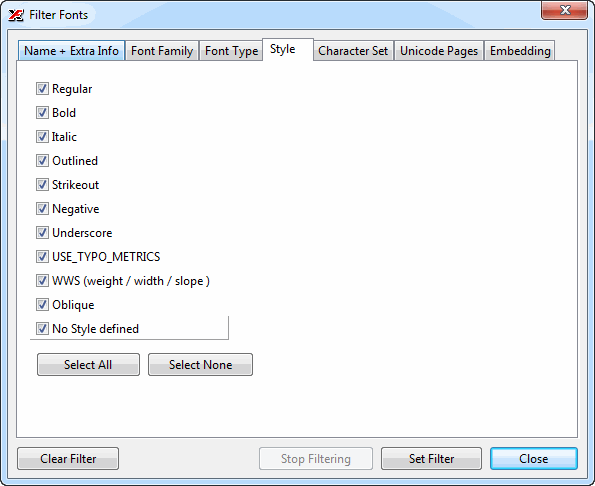
Tab 4 — Style
Filter by the style attributes embedded in the font's metadata — Bold, Italic, Regular, and other style variations. Checking Bold shows only fonts that declare themselves as a bold weight; checking Italic shows only italic or oblique variants. You can combine style checkboxes to show, for example, only fonts that are both bold and italic.
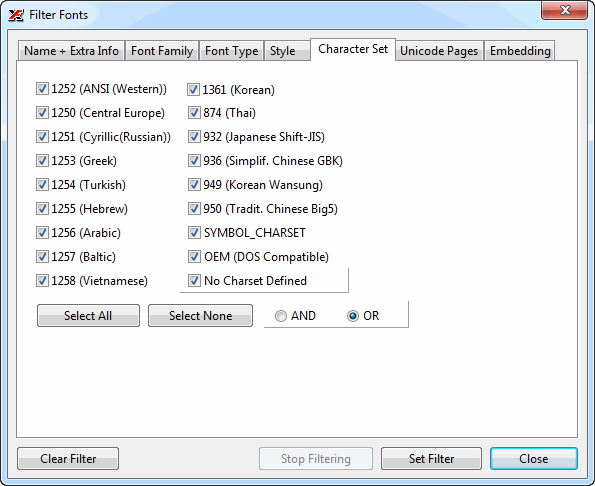
Tab 5 — Character Set
Filter by the Windows character sets (codepages) that a font supports. This is useful when you need a font that covers a particular language or script — for example, Western European, Central European, Cyrillic, Greek, Turkish, or Hebrew. Check all the character sets you require; you can use the AND checkbox to require a font to support multiple character sets simultaneously rather than just one of them.
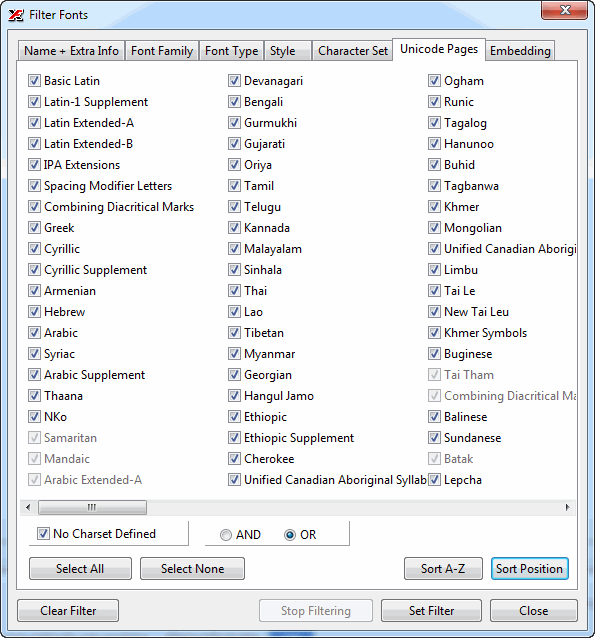
Tab 6 — Unicode Pages
Filter by Unicode block coverage. While the Character Set tab works with legacy Windows codepages, this tab works at the Unicode level — letting you filter for fonts that include glyphs from specific Unicode blocks such as Basic Latin, Arabic, CJK Unified Ideographs, Cyrillic, Hebrew, Hiragana, and many more. Like the Character Set tab, this tab supports an AND mode so you can require a font to cover several Unicode blocks simultaneously.
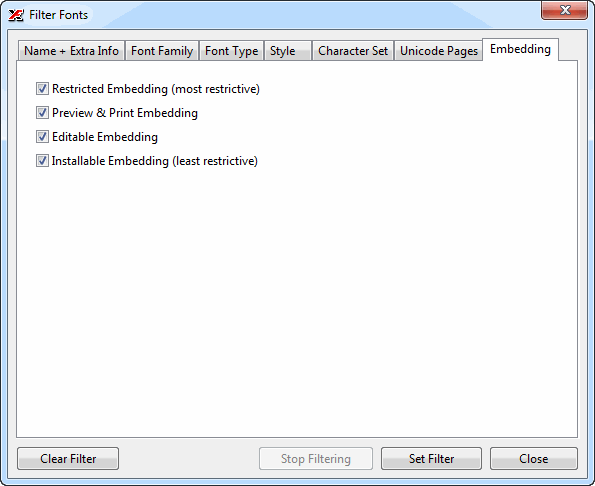
Tab 7 — Embedding
Filter by the font's embedding license flags. Font files contain embedding tags set by the font manufacturer that control how and where the font may be used — for example, whether it can be embedded in a PDF or used on a website. Use this tab to find fonts with specific embedding permissions:
- Editable embedding — the font may be embedded in documents that others can edit.
- Print and preview embedding — the font may be embedded in read-only documents (such as PDFs for distribution).
- No embedding — the font manufacturer does not permit the font to be embedded in any document.
- Installable embedding — the font may be embedded and permanently installed by the recipient.
Related Topics
- Font Tagging — add custom keywords to fonts and filter by tag to find fonts matching your own categories
- Font Types — background on TrueType, OpenType, PostScript and other font formats
- Character Encoding — background on codepages and Unicode
- Organizing Fonts — how filters, tags and collections work together
- Configuration Files — save and reload filter settings along with other X-Fonter preferences
Copyright © 2001-2026 Blacksun Software. All Rights Reserved