X-Fonter 14.0.3
Favorite Folders
X-Fonter allows you to browse any folder in an explorer-like interface.Usually there are only a few folders containing your fonts and to make accessing these folders easier, X-Fonter allows you to group these folders and make them accessible with a few mouseclicks.
How to add folders to your favorites
There are three ways to add a folder to the favorites.
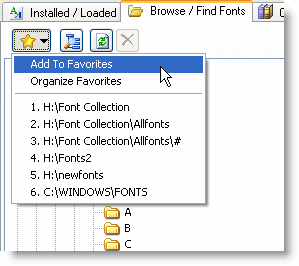
1. Press the 'Favorites' button and select 'Add to Favorites'.
The currently selected folder will be added to the favorites list.
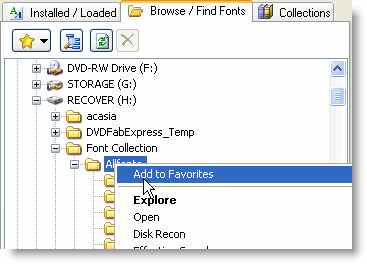
2. Right-Click on a folder and select 'Add to Favorites' from the menu.
The currently selected folder will be added to the favorites list.
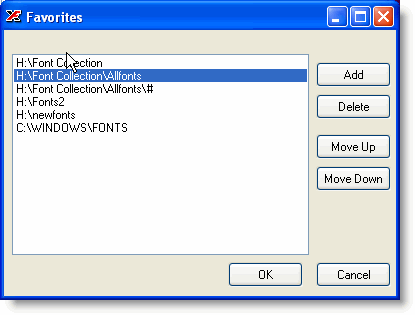
3. Press the 'Add' button from the 'Organize Favorites' window and select a folder from the folder dialog.
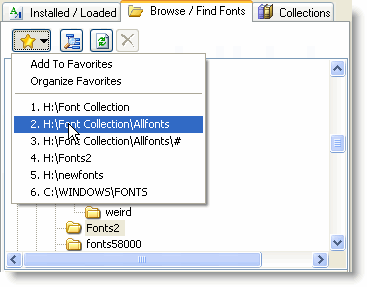
By pressing the favorites button the list of favorites is shown and then you can select one of the favorite folders by clicking on it or by typing in the number in front of the foldername.
Copyright © 2001-2026 Blacksun Software. All Rights Reserved