X-Fonter 14.0.3
Font Selection Panel
The 'Installed / Loaded' tab displays all fonts that are currently installed or temporarily loaded on your system. This gives you a clear overview of active fonts available for use.
The 'Browse/Find fonts' tab lets you explore any folder on your local drives or network locations. You can quickly preview fonts before installing them, making it easy to manage large font libraries.
The 'Collections' tab allows you to organize fonts into custom categories. These collections help you efficiently manage, group, load, unload, install, or uninstall fonts based on your workflow.
The font lists in all three tabs share the same structured layout, including the following columns :
- Font Name
- Font Example (Live Preview)
- Font Style
- Font Type
- Filename
- Path
- Font Family
Each column can be resized to match your preferences. Your customized layout is automatically saved and restored the next time you start X-Fonter, ensuring a consistent user experience.
The icons displayed next to each font name indicate the font type, helping you quickly distinguish between different formats.
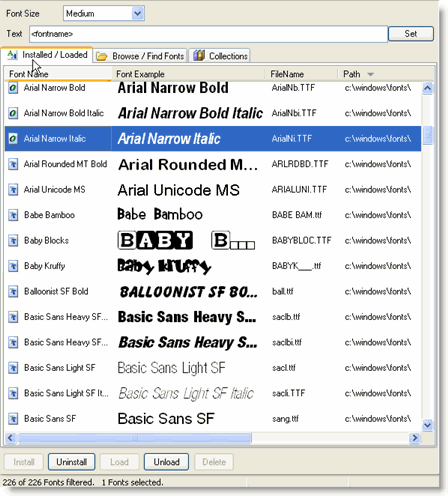
You can also resize the width of the font selection panel by dragging the divider between the left and right sections of the interface. This allows you to display more columns when needed, although in most cases the first two columns (Font Name and Preview) provide sufficient information.
Preview Size & Text
The second column shows a live preview of each font. You can adjust the preview size using the dropdown menu above the list, with options ranging from Small (16) to Extra Large (100).
The preview text can be customized in the 'Text' input field. You can enter your own sample text or use '<fontname>' to display each font name rendered in its own style.
The visibility of the preview text input can be toggled on or off in the options settings, allowing for a cleaner interface if desired.
Navigating
Selecting a font is as simple as clicking on it. You can scroll through the list using the scrollbars, but X-Fonter also provides several keyboard shortcuts to improve navigation speed.
Use the 'Up' and 'Down' arrow keys to move between fonts. The 'Home' and 'End' keys jump directly to the first or last font in the list. Typing any letter on your keyboard will instantly navigate to the first font starting with that character.
You can select multiple fonts in several ways: hold the CTRL key to select individual fonts, use the Shift key to select a range, or click and drag the mouse across multiple entries.
Once fonts are selected, you can perform various font management actions :
- Install fonts
- Uninstall fonts
- Load fonts temporarily
- Unload fonts
- Add fonts to a collection
- Remove fonts from a collection
- And more advanced font management operations
For detailed instructions on these actions, refer to the Font Management section.
Sorting
The font list can be sorted by clicking on any column header. This allows you to organize fonts alphabetically, by font type, style, or any other attribute.
Sorting is especially useful when working with large font collections, enabling faster identification and grouping of fonts based on specific characteristics.
Filtering
By default, all available fonts are displayed. However, X-Fonter provides powerful filtering options that allow you to narrow down the list based on specific criteria.
Filters are particularly useful when managing extensive font libraries, helping you quickly locate the fonts you need.
For a complete overview of filtering options, see the Filtering Fonts section.
Copyright © 2001-2026 Blacksun Software. All Rights Reserved