X-Fonter 14.0.3
Copy & Move Fonts
The Copy and Move actions let you physically relocate font files between folders on your system. The key reason to use X-Fonter's own tools rather than Windows Explorer is that X-Fonter automatically updates all collection references and tag associations to point to the new location — so nothing breaks after the operation.
Copy vs. Move
| Copy | Move | |
|---|---|---|
| Original file | Stays in place — untouched | Removed from its original location |
| Result | Two copies of the file exist: the original and the new one | One copy exists at the new location only |
| Collection references | Unchanged — collections still point to the original | Updated automatically to point to the new path |
| Best used for | Backing up fonts; consolidating fonts for a project delivery without disturbing your main library | Reorganising your library; moving fonts to a new permanent location |
How to Copy or Move Fonts
- Select the font(s) you want to copy or move in any tab — Browse, Installed, or Collections. Use Shift+Click for a range or Ctrl+Click for a non-contiguous selection.
- Right-click the selection and choose Copy Fonts or Move Fonts from the context menu. Both actions are also available from the toolbar at the bottom of the font list.
- A folder browser opens. Navigate to the destination folder and click OK.
- The progress dialog opens automatically and the operation begins.
The Progress Dialog
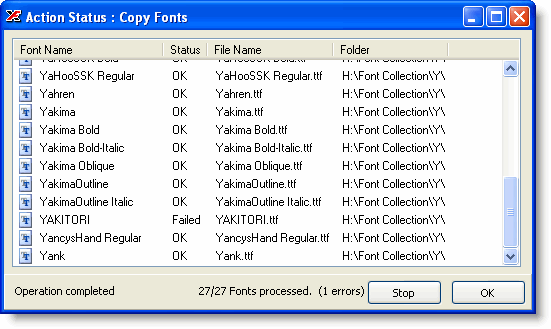
The dialog lists every font in the operation and shows a live Status column that updates as each file is processed. Once a file completes successfully its status changes to indicate success. If a file fails — for example because a font with the same name already exists at the destination, or because of a permissions issue — the reason is shown in the Status column for that row.
A running count of errors is shown at the bottom of the dialog. If any errors occur, click the Status column header to sort by status — this groups all failures together so you can see at a glance what went wrong and which files need attention.
Common Scenarios
Reorganising your font library into a new folder structure
Use Move. Navigate in the Browse tab to the folder containing the fonts you want to relocate, select them, and move them to their new home. X-Fonter updates every collection that referenced those fonts automatically, so your collections remain intact after the move.
Delivering project fonts to a client or colleague
Use Copy. Select all fonts from the relevant collection, copy them to a dedicated delivery folder (or a compressed archive), and hand that folder over. Your main library is untouched and all collection references remain unchanged.
Consolidating fonts from multiple sources into one library folder
Use Move. Browse each source folder in turn, select all fonts, and move them into your central library. If you move fonts into subfolders that already exist in your library (for example by type or foundry), the collection and tag data will follow automatically.
Making a backup of specific collections
Use Copy. Open the Collections tab, select all fonts in the collection you want to back up, and copy them to a backup location. This produces a standalone copy of just those files without affecting the working library.
Related Topics
- Managing Collections — what happens to collection links when fonts are moved, and how to fix broken links
- Font Tagging — how tag associations follow the file when moved through X-Fonter
- Organizing Fonts — strategies for structuring your library folder layout
- Font Actions Overview — full list of all available actions including Delete
Copyright © 2001-2026 Blacksun Software. All Rights Reserved