X-Fonter 14.0.3
Options
By selecting "Options"->"Set Options" from the menu (or pressing CTRL-O), the options screen is shown, which contains five different tabs.
1. General Settings
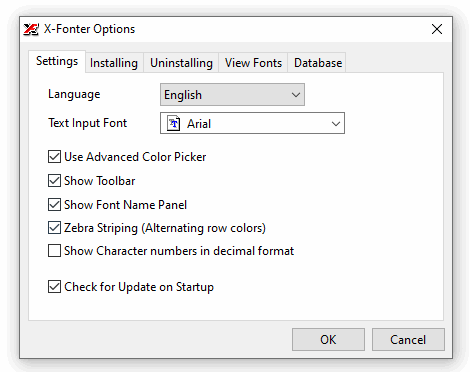
Language Selection : Choose between English (Default), French and German.
Text Input Font : This font will be used for input controls. It's best to select a font that supports Unicode characters (Arial Unicode for example)
Advanced Color Picker : When not checked the default color dialog is used. Otherwise a built-in advanced color dialog (similar to ColorMania) is used.
Show Toolbar : Turn on/off the application Toolbar
Show Font Name Panel : Turn on/off the panel that displays the currently selected Font name
2. Install Options
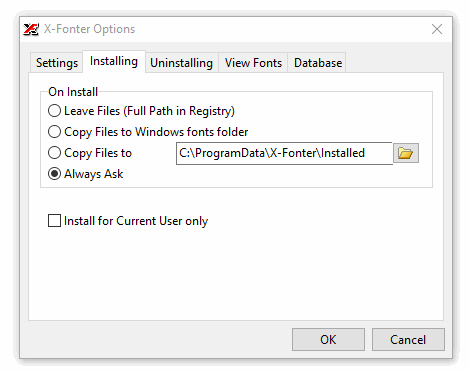
Install for all users / current user : Choose whether fonts should be installed system-wide (requires administrator privileges) or only for the currently logged-in user.
Copy fonts to Windows Fonts folder : When enabled, font files are physically copied to the Windows Fonts directory during installation. When disabled, fonts are registered in place.
Confirm before installing : When enabled, X-Fonter will ask for confirmation before performing install operations.
3. Uninstall Options
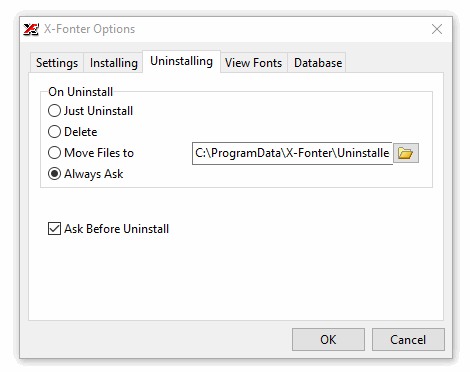
Delete font file after uninstalling : When enabled, the font file is deleted (moved to the Recycle Bin) after it is uninstalled from Windows.
Confirm before uninstalling : When enabled, X-Fonter will ask for confirmation before performing uninstall operations.
4. View fonts
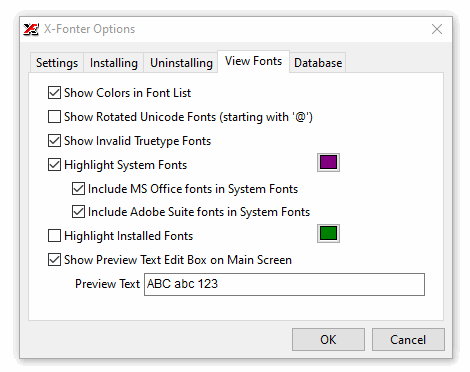
Preview Text : Set the default sample text used when previewing fonts. You can enter any text here, including Unicode characters.
Preview Font Size : Set the default font size used when previewing fonts in the font list.
Zebra Striping : When enabled, alternating rows in the font list are shown with a slightly different background color for easier reading.
Row Size : Choose the row height in the font list (Normal, Large, Extra Large).
System Font Color : Set a custom color to highlight system (Windows) fonts in the list.
Installed Font Color : Set a custom color to highlight installed fonts in the list.
5. Database
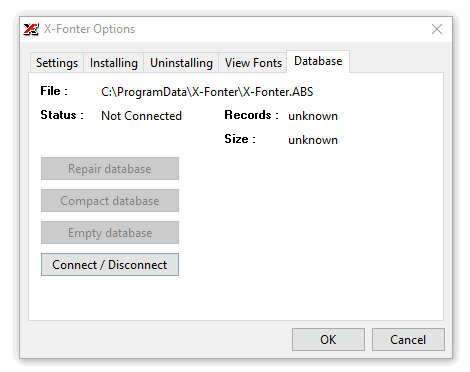
X-Fonter stores some of its data in a local database which makes retrieval a bit faster. On this page you can find the status of the database and see how many records are kept stored in the database.
Repair database:
If there is a problem with your database you can use this button to repair it.
Compact database:
This option optimizes the used space in the database and generally results in a smaller database,
which can be beneficial for performance.
Clear database:
When browsing through lots of fonts there might be a lot of unused data in the database.
In that case it might be wise to clear the database from time to time.
Copyright © 2001-2026 Blacksun Software. All Rights Reserved