X-Fonter 14.0.3
Font Information
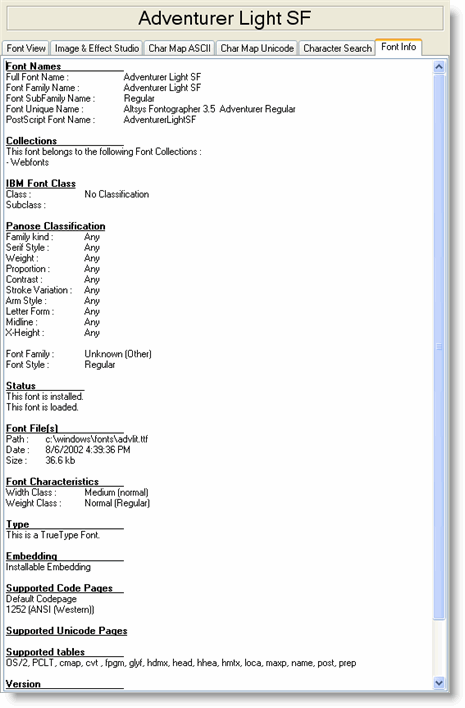
The Font Info tab is the sixth and final tab of the Font Detail Panel. It displays all the metadata stored inside the font file itself — information the font designer embedded when the font was created, covering everything from the designer's name and copyright notice through to technical details such as embedding restrictions and supported Unicode ranges.
This tab is particularly useful before using a font in a commercial project: the licensing and embedding information here tells you exactly what the font can legally be used for without having to hunt for a separate licence document.
The Metadata Fields
The information is grouped into logical sections. Below is an explanation of each field and what it tells you in practice.
| Field | What it means |
|---|---|
| Font Names | The various names the font file declares for itself: the family name (for example, Garamond), the full name including style (Garamond Bold Italic), the PostScript name used internally by applications, and the preferred family and subfamily names used in font menus. These may differ from the filename on disk. |
| Collection Info | X-Fonter-specific information showing which Collections this font has been added to, and any tags applied to it. |
| Font File Info | File-level details: the full path to the font file on disk, file size, font format (TrueType, OpenType CFF, OpenType TT, or PostScript Type 1), and the number of glyphs the file contains. |
| Panose Classification | A ten-digit numerical fingerprint that describes the visual characteristics
of the font — family kind, serif style, weight, proportion, contrast, stroke
variation, arm style, letterform, midline, and x-height. Windows uses Panose
data to find substitute fonts when a requested font is not available. A value
of 0 in any position means that digit was not specified by the
font designer. |
| Embedding Information | The licence flags set by the font designer controlling how the font may be embedded in documents. The four levels are: Editable (font can be embedded and the document can be edited), Print and Preview (font can be embedded but the document must be read-only), No Subsetting (the complete font must be embedded rather than just the glyphs used), and No Embedding (the font must not be embedded at all). Check this field before distributing a PDF or e-book that embeds the font. |
| Supported Codepages | The Windows codepages (character sets) the font declares support for — for example, Latin 1, Central European, Cyrillic, Greek, Turkish, and so on. A codepage appearing here means the font designer intended the font to cover that language range, though the Unicode Character Map tab gives a more detailed view of actual glyph coverage. |
| Supported Unicode Ranges | The Unicode blocks the font declares support for, expressed as a bitmask in the font's OS/2 table. Examples include Basic Latin, Greek, Cyrillic, Arabic, Mathematical Operators, and Arrows. This is the high-level declaration; use the Unicode Character Map to verify exact character-level coverage within each range. |
| Version | The version string of the font, as set by the designer or foundry. Useful when reporting font-related issues or confirming you have the latest release of a commercially updated typeface. |
| Copyright | The copyright notice embedded in the font — typically the year and the name of the designer or foundry. This is the primary indicator of who owns the font and is the first thing to check when assessing licensing. |
| Trademark | The trademark string, if any, embedded by the foundry. Not all fonts include this field. |
| Designer | The name of the typeface designer, and optionally a URL to the designer's website. This field is populated at the designer's discretion and may be absent in older fonts. |
| License Info | A plain-language description of the licence terms under which the font may be used, as written by the designer or foundry. When present, this is the definitive statement of what you can and cannot do with the font — covering commercial use, web embedding, modification, and redistribution. Not all fonts include this field; if it is blank, consult the font's accompanying licence file or the foundry's website. |
Copying Metadata to the Clipboard
Any piece of text in the Font Info tab can be selected with the mouse and copied to the clipboard. This is useful for:
- Pasting the copyright or licence text into a project credits document
- Copying the PostScript name or full font name when specifying a font in CSS, code, or a design brief
- Recording the version number when filing a bug report or support request with a foundry
To copy: click and drag to select the text, then press Ctrl+C or right-click and choose Copy.
Common Scenarios
Checking whether a font can be embedded in a PDF
Open the Font Info tab and look at the Embedding Information field. If it reads Editable or Print and Preview, the font can be embedded. If it reads No Embedding, embedding is prohibited by the licence and your PDF application should substitute or outline the glyphs instead.
Identifying an unknown font
Select the font in any tab and open Font Info. The Font Names section shows the family name, full name, and PostScript name as stored in the file — even if the filename on disk is a cryptic abbreviation. The Designer and Copyright fields often confirm the foundry, which helps you track down the original source or licence.
Confirming language support before using a font internationally
Check Supported Codepages for a quick overview of the declared language coverage, then switch to the Unicode Character Map tab to verify that the specific characters your text requires are actually present in the font.
Related Topics
- Font Detail Panel — overview of all six detail tabs
- Unicode Character Map — verify actual glyph coverage beyond the declared Unicode ranges shown here
- ASCII Character Map — check codepage character coverage in detail
- Font Types — background on TrueType, OpenType and PostScript formats and what the font file format field means
- Character Encoding — background on codepages, Unicode ranges and how they relate to font coverage
Copyright © 2001-2026 Blacksun Software. All Rights Reserved