X-Fonter 14.0.3
Character Search
The Character Search tab is the fifth tab of the Font Detail Panel. It lets you locate any Unicode character without having to browse through the Unicode Character Map manually. You can search by the character's official name, its numeric code point, or by typing or pasting the character itself — and you can combine search modes to run more targeted queries.
Results are always displayed in the currently selected font and in the foreground and background colours set in the Control Panel, so you can immediately see whether the font you are evaluating actually renders each matching character.
The Three Search Modes
Three checkboxes at the top of the tab select which search mode to use: Name, Number, and Character. You can tick more than one at a time to run a combined search across multiple modes simultaneously.
| Mode | What you enter | What is returned |
|---|---|---|
| Name | A word or phrase from the character's official Unicode name, or a regular expression pattern | All characters whose Unicode name contains the search term |
| Number | A decimal or hexadecimal code point value | The single character at that code point |
| Character | One or more characters typed or pasted directly into the search box | Each individual character in the input, with its name and code point |
Search by Name
Name search looks up characters by their official Unicode name — the same names shown in the statusbar of the ASCII and Unicode character maps. The search is case-insensitive and uses regular expressions, which makes it considerably more powerful than a simple text match.
For example, entering Euro|Dollar returns all characters whose name
contains either "Euro" or "Dollar" — the pipe character | acts as an
OR operator in regular expression syntax.
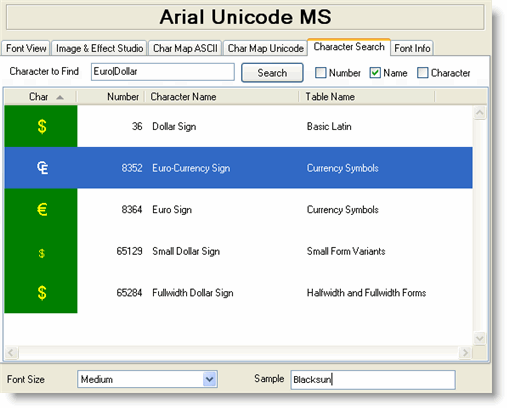
Euro|Dollar returns five characters. The first column renders each result in the currently selected font.Some other useful name search patterns:
arrow— finds all arrow symbols (left arrow, right arrow, double arrow, and so on)^latin small letter— finds all lowercase Latin letters (the^anchors the match to the start of the name)copyright|trademark|registered— finds the ©, ™ and ® symbols in one searchfraction— finds all Unicode fraction characters (½, ⅓, ¼, and others)
bullet,
dash, or star — and narrow down from the results. The
official Unicode names are always in English and use plain descriptive vocabulary,
so natural language guesses usually get close.
Search by Number
Number search finds the single character at a specific Unicode code point. Enter
the code point as a decimal integer or as a hexadecimal value prefixed with
0x or U+.
Examples:
- Entering
69returns E (LATIN CAPITAL LETTER E, U+0045) - Entering
8364returns € (EURO SIGN, U+20AC) - Entering
0x20ACorU+20ACalso returns the Euro sign — all three formats are accepted
Search by Character
Character search works in the opposite direction to Name search: instead of entering a name to find a character, you enter the character itself to find its name and code point. This is useful when you have copied an unknown symbol from a document and want to identify it, or when you want to quickly look up the code points for a set of characters you already have.
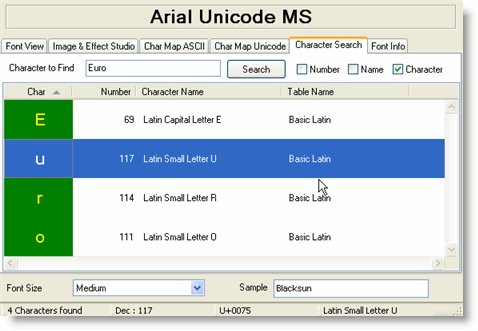
Entering Euro as a character search — not a name search — returns four
results: the individual characters E, u, r and o,
each shown with its own Unicode name and code point.
The Results List
Each row in the results list shows:
- Glyph — the character rendered in the currently selected font at the current preview size. If the font does not support the character, a fallback box is shown instead, making it immediately clear which results the font cannot render.
- Code point — the Unicode code point in hexadecimal (for example,
U+20AC) - Decimal value — the same code point in base 10
- Character name — the official Unicode name
Click any row to select it. The selected character is also highlighted in the Unicode Character Map tab, so you can switch there to see the character in context within its Unicode block.
Double-click a row to add the character to the Sample edit box, from where you can copy it to the clipboard with Ctrl+C and paste it into any application.
Combining Search Modes
Ticking more than one checkbox runs all selected modes against the same search
term simultaneously and merges the results into a single list. For example, ticking
both Name and Number and entering 169 would return both
the character at code point 169 (©, COPYRIGHT SIGN) and any characters whose name
contains the string "169" — in practice, a useful way to cross-check results when
you are uncertain which mode applies.
Related Topics
- Unicode Character Map — browse characters visually by Unicode block; search highlights the matching cell here
- ASCII Character Map — browse the 256 ANSI characters; the statusbar shows names used in search
- Font Information — read embedded metadata including the supported Unicode ranges declared by the font
- Character Encoding — background on Unicode code points, blocks, and how they relate to ANSI codepages
Copyright © 2001-2026 Blacksun Software. All Rights Reserved