X-Fonter 14.0.3
Installing & Loading Fonts
Both installing and loading make a font available to all running Windows applications — it will appear in their font menus immediately. The difference is how long that availability lasts, and what happens to the font file on disk.
Installing vs. Loading: The Key Difference
| Load | Install | |
|---|---|---|
| Duration | Current Windows session only — the font is deactivated when X-Fonter closes or you unload it manually | Permanent — the font is available after every restart until you uninstall it |
| File location | Font file stays exactly where it is | Font file is copied into the Windows Fonts folder
(C:\Windows\Fonts) |
| Best used for | Trying a font in a design application before committing to it; fonts you only need for one project or session | Fonts you use regularly across many projects and always want available |
| Effect on font menus | Font appears in all running applications immediately; disappears from menus after unloading or restarting Windows | Font appears in all applications immediately and persists across restarts |
How to Load a Font
- Navigate to the font using the Browse tab, the Installed tab, or the Collections tab.
- Select one or more fonts. Use Shift+Click for a range or Ctrl+Click to add individual fonts to the selection.
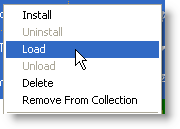
- Click the Load button at the bottom of the font list, or right-click the selection and choose Load Font(s) from the context menu.
- Switch to your design application — the font appears in its font menu immediately, without a restart.

A loaded font remains active until one of the following happens:
- You click Unload in X-Fonter
- X-Fonter is closed
- Windows is restarted
How to Install a Font
- Select the font(s) you want to install.
- Click the Install button at the bottom of the font list, or right-click and choose Install Font(s).
- X-Fonter copies the font file into the Windows Fonts folder and registers it with the system. The font is immediately available in all applications.
C:\Windows\Fonts. If you later move or delete the original file,
the installed copy is unaffected — but X-Fonter may lose track of where the
original came from. To avoid confusion, keep your font library in a stable
location before installing.
How to Uninstall a Font
Uninstalling removes a permanently installed font from Windows. The font disappears from all application font menus after the next application restart (some applications may require a full Windows restart to fully release the font).
- Switch to the Installed tab to see all currently installed fonts.
- Select the font(s) you want to remove.
- Click Uninstall, or right-click and choose Uninstall Font(s).
C:\Windows\Fonts or wherever it was copied during installation.
To also remove the file, use the Delete action after uninstalling, or
delete it manually from the Fonts folder.
How to Unload a Font
Unloading deactivates a temporarily loaded font without touching the file on disk. It is the counterpart to Load and only affects fonts that were loaded by X-Fonter in the current session — permanently installed fonts are not affected.
- Select the loaded font(s) in the font list. Loaded fonts are indicated by a distinct icon in the Installed & Loaded tab.
- Click Unload, or right-click and choose Unload Font(s).
Working with Collections
The Collections tab has its own Load and Unload buttons in the toolbar above the collections list. These act on all fonts in the selected collection, regardless of which fonts are individually selected in the list below.
If you want to load or unload only some fonts from a collection, select those specific fonts in the lower panel and use the action buttons at the bottom of the screen instead.
Which Should I Use?
| Situation | Use |
|---|---|
| Trying a font to see how it looks in your design application | Load |
| Working on a project that needs specific fonts for the next few hours | Load (or load a Collection) |
| A font you use in nearly every project | Install |
| System fonts that Windows or your applications depend on | Install (already installed — do not uninstall these) |
| Fonts for a single client whose work is now complete | Unload or remove from the active collection |
| A font you no longer need at all | Uninstall, then optionally Delete |
Related Topics
- Font Actions Overview — full list of all available font actions
- Collections — group fonts into named sets and load or unload the whole group at once
- Browse & Find Fonts — locate uninstalled fonts to load or install
- Installed & Loaded Fonts — view and manage the fonts currently active on your system
- Organizing Fonts — strategies for keeping a large font library manageable without permanently installing everything
Copyright © 2001-2026 Blacksun Software. All Rights Reserved