Texefex 5.0
Picture Selection
This tab is only available when the Image Conversion effect is selected. It gives you a bigger interface for selecting and manipulating the image that you want to convert.
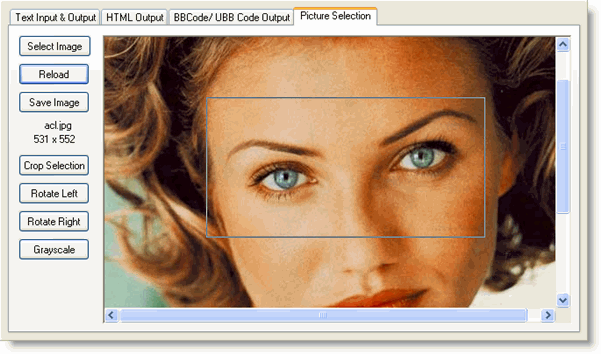
On the left side you can find the buttons to work with the image:
- Select image — opens a dialog box to load an image from disk (JPG, GIF, BMP).
- Reload — reloads the image (for example if you're not happy after making changes).
- Save — saves the image to disk (after manipulation).
The next four buttons are for manipulating the image:
- Crop — cropping means that you're cutting the selected rectangular area from the picture (and throwing away the rest). You can select a rectangular area by clicking on the start point and dragging the mouse to the opposite corner.
- Rotate Left — rotates the image counter-clockwise (90 degrees).
- Rotate Right — rotates the image clockwise (90 degrees).
- Grayscale — replaces all colors of the image with corresponding shades of gray.
All manipulations made on the image here will automatically be reflected in the "Image Conversion" tab of the control panel.
Copyright © 2001-2026 Blacksun Software. All Rights Reserved