Texefex 5.0
Texefex Screen
The picture below shows you what a typical Texefex screen looks like.
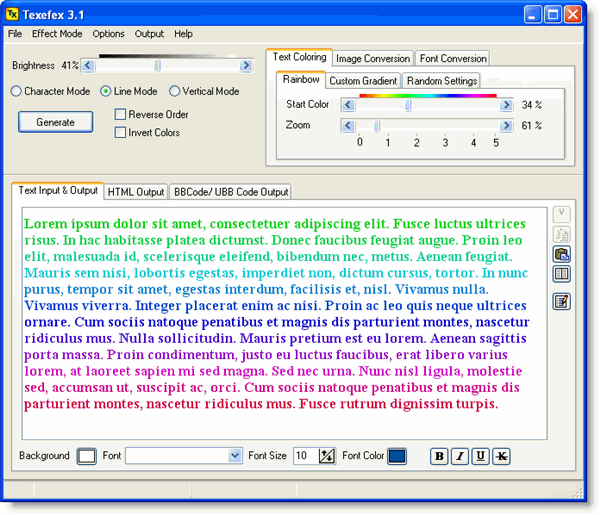
The Texefex program area can be divided into 4 different areas:
- The menu bar
- The control panel
- The Input/Output panel
- The status bar
These names will also be used in the rest of this help file.
1. The menu bar
The menu bar contains a series of menus and tool buttons that let you customize the way Texefex works or the way Texefex displays its results.
2. The control panel
This control panel allows you to define how the colors will be applied to the text that you typed in the Input/Output panel. The controls on this panel (and their functions) will be discussed later.
3. The Input/Output panel
This panel is where you enter the text that you want to work with, or retrieve the resulting text or codes. It consists of different tabs, each with a different function:
- Text Input & Output
- HTML Code
- BBCode / UBB Code
- Picture Selection
4. The status bar
The status bar gives you feedback about what the program is doing. When Texefex is generating output, you will see a small animated image in the lower left, next to a short description of what it is doing.
All these parts are described in detail in the rest of this help file.
Copyright © 2001-2026 Blacksun Software. All Rights Reserved