Texefex 5.0
Image Conversion
Texefex allows you to select any image and convert it to text format where the character colors will be chosen so that the resulting text reflects the original image.
This is a special mode because instead of coloring the text you entered, it will create new text based on the image that you supplied.
Control Panel
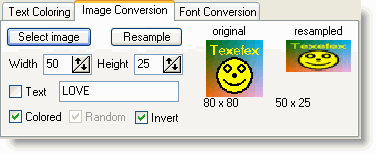
Steps to Convert an Image to Text
- Select an image.
- Resample the image to the correct size.
- Select the conversion mode (fixed characters or color intensity).
- Press "Generate" button or F5.
Texefex will now generate your colored text. You can always make changes to the settings you made and regenerate the colored text.
1. Select an Image
You can select an image by pressing the "Select image" button. This will open a file selection dialog where you need to choose the image you want to convert. Texefex supports BMP, GIF and JPG files.
The Input/Output panel has a special tab called "Picture Selection" from where you can also select an image, but additionally there are a few functions that you can apply to the selected image (rotate, crop, grayscale). The advantage here is also that you can view the image in its real size, whereas the control panel only shows the image in a very small size.
2. Resample the Image
Basically an image has height and width dimensions (e.g. 60 by 80 pixels: total 2400 pixels). Each of these pixels can be converted to a character with the same color. This way you would get 60 lines of text, each consisting of 80 characters.
The characters can all be the same, but they can also be different (even random). Another possibility is to calculate the intensity of the pixel's color and select a character based on this intensity. This way you could make the conversion even without the use of colors.
Because most fonts do not have square characters there's also a possibility to resample your images to another size before converting them. An image of 40x40 pixels is square, but a rectangle of 40 lines of 40 characters is usually much higher than it is wide. In this case you would get a much better result if you resample your image to 30x50 pixels. This would result in 30 lines of 50 characters, which would be much closer to a rectangular shape, and thus closer to the original image.
To resample the image, you simply need to set the width and height in the appropriate input fields and press the "Resample" button.
3. Select Conversion Mode
The first conversion mode lets you enter the character(s) that will be used to make the conversion. In this mode the color of the characters is the only thing resembling the picture.
If you enter more than one character you can also specify whether these characters need to appear in random order or in the order that you specified in the control panel.
The second conversion mode chooses characters based on the intensity of the image colors.
4. Press the "Generate" Button
This will actually generate the output text. Depending on the size of the resampled picture this could take a small to moderate amount of time.
Copyright © 2001-2026 Blacksun Software. All Rights Reserved