ColorMania 15.1
Color Wheel, HSV Rectangle & SV Square
The Color Space area lets you display a nice graph from which you can select any color you want by clicking on the image.
Here you have three different display options:
- Color Wheel
- HSV Rectangle
- SV Square
The Color Wheel
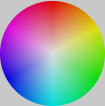
The color wheel represents a slice of the HSV color space at a fixed brightness level. The angle around the wheel controls Hue, and the distance from the center controls Saturation. Use the Value (Brightness) slider to make the entire wheel lighter or darker.
Note that changing RGB values may shift the indicator position on the wheel, since RGB and HSV are different ways of describing the same color — any change in one system is automatically reflected in the other.
The HSV Rectangle
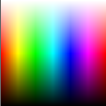
The HSV Rectangle gives an overview of all available hues across the full horizontal axis. The center row represents the base color. Moving upward increases Saturation, while moving downward reduces Value (Brightness).
The SV Square

The SV Square shows all variations for the currently selected Hue. Saturation increases from left to right, and Value (Brightness) decreases from top to bottom — giving you a complete map of light, dark, vivid and muted variations of that hue in one view.
When you select a color by any method — RGB sliders, hex input or otherwise — all three displays update automatically to reflect the new values.
How to select a color
Click anywhere on the display to select that color as the active color. You can also drag the cursor across the display and the active color will update continuously as you move.
Copyright © 2001-2026 Blacksun Software. All Rights Reserved