ColorMania 15.1
How to Use ColorMania
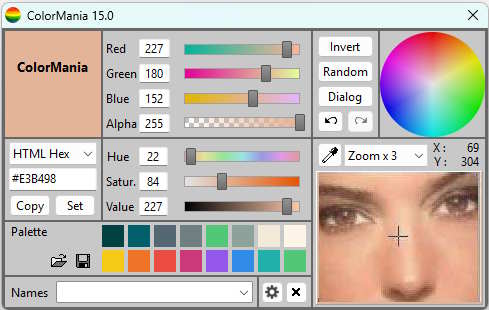
The picture below shows you what a typical ColorMania screen looks like.
The ColorMania program area is divided into 6 different areas, shown below.
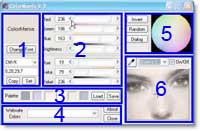
1. The Color Identification area
The top-left corner shows the currently selected color — a filled square in the active color with the color code displayed underneath in the selected format. For more information see Color Display.
2. The RGB and HSV Sliders
These sliders let you adjust the selected color by changing individual RGB or HSV component values. The current value is shown in the edit box next to each slider, which can also be used to enter a specific value directly. For more information see RGB and HSV Sliders.
3. The Color Palette
ColorMania lets you build palettes of up to 16 colors each, which can be saved to and loaded from disk. This makes it easy to store and reuse color collections across projects. For more information see the Color Palette.
4. The HTML Colors
This section lets you pick from a list of over 1,560 named colors, including all 140 standard HTML colors. Colors can be sorted by name, hue, similarity and more. For more information see HTML Colors.
5. The Color Spaces
The color space area displays a visual representation of the current color in the form of a Color Wheel, HSV Rectangle or SV Square. Clicking anywhere on the display selects that color as the active color. For more information see the Color Spaces.
6. The Screen Magnifier (with Color Grabber)
The Color Grabber lets you pick any color from any pixel on your screen. The built-in magnifier shows the area around your cursor at up to 20× zoom, making it easy to select the exact pixel you need. For more information see the Screen Magnifier with Color Grabber.
Copyright © 2001-2026 Blacksun Software. All Rights Reserved