ColorMania 15.1
Layout Options
ColorMania offers three layouts to suit different workflows and screen sizes. You can switch between them at any time via Change Layout in the main menu.
Layout Feature Overview
| Feature | Large | Medium | Small |
|---|---|---|---|
| RGB Values | ✓ | ✓ | ✓ |
| HSV Values | ✓ | ✓ | ✓ |
| Color Input | ✓ | ✓ | ✓ |
| Copy / Set Buttons | ✓ | ✓ | ✓ |
| Screen Magnifier | ✓ | ✓ | ✓ |
| Color Space Display | ✓ | ✓ | |
| Color Palette | ✓ | ✓ | |
| Named Colors Dropdown | ✓ | ✓ | |
| Invert / Random / Dialog | ✓ | ✓ | |
| RGB Sliders | ✓ | ||
| HSV Sliders | ✓ | ||
| Alpha Slider | ✓ |
Large Layout
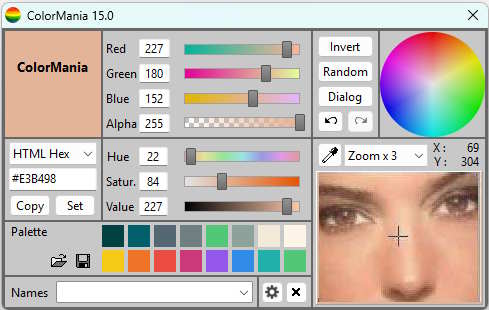
The Large Layout is the default layout and provides access to all of ColorMania's features in a single view. It includes the full RGB and HSV sliders, the color space display (Color Wheel, HSV Rectangle or SV Square), the color palette, and the screen magnifier with zoom controls. This layout is recommended when you are doing detailed color work and need quick access to all controls without switching between views. It is best suited for larger screens or when ColorMania is your primary tool.
Medium Layout
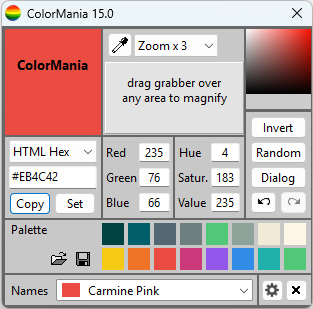
The Medium Layout offers a more compact view by removing the RGB and HSV sliders, while keeping the color palette, color space display and screen magnifier accessible. Color values can still be entered manually using the input fields. This layout is a good balance between functionality and screen space, and is ideal when you need ColorMania open alongside other applications without it taking up too much room.
Small Layout
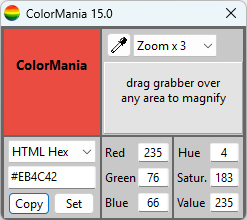
The Small Layout reduces ColorMania to its most minimal footprint, showing only the essential color information and the screen magnifier. This is useful when screen space is at a premium, such as on smaller monitors or when working with multiple windows. The small layout keeps ColorMania out of your way while still giving you quick access to color codes and the grabber tool.
Copyright © 2001-2026 Blacksun Software. All Rights Reserved