Mousotron 15.0
How to Use Mousotron
Mousotron is designed to be simple and non-intrusive. Once launched, it sits on your desktop or in the system tray, quietly recording every movement and keystroke you make.
The Main Display
The main window provides a real-time stream of your activity metrics. Depending on your preference, you can view this data in a Horizontal or Vertical orientation.
By default, Mousotron can track and display the following:
- Cursor Distance: Total distance traveled by your mouse in your chosen unit (Metric or English).
- Button Clicks: Separate counters for Left, Right, Middle, and Double-clicks.
- Keystrokes: A running total of every key pressed on your keyboard.
- MouseWheel: Tracks how many "notches" you have scrolled.
- Coordinates & Speed: Real-time X/Y position of your cursor and its current movement speed.
The Right-Click Menu
Right-clicking anywhere on the main Mousotron display window opens a convenient popup menu, allowing you to quickly manage the application without opening the full setup screen.
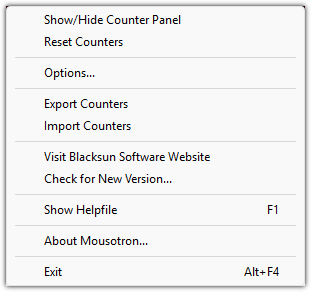
- Show/Hide Counter Panel: Minimizes the main window to the system tray while keeping the tracking active.
- Reset Counters: Instantly clears your current session counters for a fresh start.
- Options: Opens the configuration dialog to adjust all settings.
- Export Counter / Import Counters: (New) Allows you to save your current stats to a file or load previously saved data.
- Exit: Completely closes the application.
Managing Your Stats
Mousotron provides several ways to manage your recorded data:
- Resetting: To start your counters from zero, right-click the main window and select "Reset" or use the setup menu.
- Import & Export: You can transfer your statistics between computers or keep backups. Use the Export feature to save your current mileage and click counts to a file, and Import to restore them later.
- Logging: You can enable daily logging to save your statistics automatically to a local file (mousotron.log).
- Global Rankings: If enabled, your scores can be uploaded to the online leaderboard to see how your activity compares with other users worldwide.
The Interface Modes
You can customize how Mousotron looks to fit your workflow:
- Always on Top: Toggle this to keep Mousotron visible even when you are working in other full-screen applications.
- Transparency: Adjust the opacity so the counters don't block your view of other windows.
- Minimized View: You can hide the main window and let Mousotron run entirely from the System Tray.
Note: To customize which items are visible on your display, visit the Displayed Items tab in the Configuration Guide.