Magnifixer 15.1
How to Use Magnifixer
Working with Magnifixer
When you launch Magnifixer, a specialized window appears to show an enlarged portion of your screen. This window is highly customizable, and all your personal settings are automatically saved and restored for your next session.
- System Tray Integration: A small magnifier icon appears in the system tray area whenever the program is running.
- Quick Toggle: You can show or hide the magnification window by double-clicking the tray icon.
- Efficiency: When the window is hidden, Magnifixer operates in a low-resource state to save system memory.
How to Resize the Window
The size of the magnifier window is fully customizable, behaving exactly like a standard Windows application window.
- Position your Cursor: Hover your mouse pointer over any of the four edges or four corners of the Magnifixer window.
- Wait for the Icon Change: The cursor will change from a standard arrow to a double-headed resizing arrow (horizontal, vertical, or diagonal).
- Click and Drag: While the double-headed arrow is visible, click and hold the left mouse button.
- Set the Size: Drag your mouse inward to shrink the window or outward to enlarge it. Release the mouse button once you reach your desired dimensions.
Constraints and Presets
- Minimum Limit: The window size is free to choose, but it has a minimum limit of 100 pixels to ensure the interface remains usable.
- Default Preset: If you need to return to a standard size quickly, right-click the window to open the popup menu and select Set Default Window Size (320x480) Top Left.
- Title Bar Toggle: If you find it difficult to grab the edges, double-click anywhere on the window to show the standard Windows caption bar, which can make the window borders easier to interact with.
How to Move the Window
Since you are setting up your workspace, here is the exact method for repositioning the window:
- Standard Move: Click anywhere inside the magnifier window (on the magnified image itself), hold the left mouse button, and drag the window to a new location on your screen.
- Caption Bar Move: If the title bar is visible, you can also click and drag the caption bar at the top to move the window.
- Auto-Avoidance: To prevent the window from blocking your view, you can enable Change Position when Hovered Over in the right-click menu, which causes the window to jump to a different corner whenever your mouse cursor enters its area.
The Magnifixer Window Structure
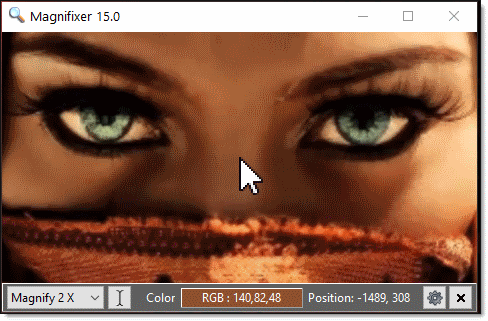
The interface is divided into two distinct parts: the Main Display and the optional Info Panel.
Main Display
The main screen provides a real-time magnified view of the area surrounding your mouse cursor. As you move your mouse, the display updates immediately to follow your movement.
You can customize the display with the following features:
- Zoom Factor: Scale your view from 2x up to 40x magnification.
- Performance: Adjust the update frequency to suit your computer's speed.
- Visual Aids: Toggle the visibility of the cursor and a precision crosshair.
- Clarity: Enable "Smoothen Display" or "Invert Image" for better readability.
Note: Detailed steps for these settings are available on the Configuration page.
Optional Info Panel
Located at the bottom of the window, the Info Panel provides quick data and controls without opening the full menu.
- Quick Zoom: Provides easy access to change your current magnification level on the fly.
- Follow Caret Toggle button: Allows you to change the caret tracking mode.
- Color & Coordinates: View real-time pixel colors (in HTML or RGB formats) and exact cursor coordinates.