FlashTray Pro 5.0
Settings & Options
Configuration of FlashTray is done by selecting 'Configure' from the popup menu. This will show the configure screen with three tabs (four in the Pro version).
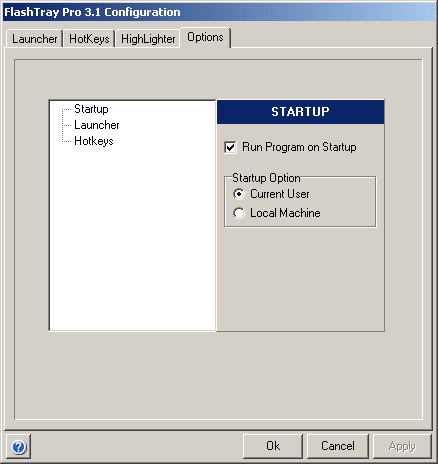
General Options
- Run Program on Startup: Setting this is recommended. It defines whether FlashTray is run automatically when your computer boots.
Launcher Options
- Icons: This checkbox determines whether the icons in your launcher popup menu are small or large. Alternatively, you can also disable the icons if you want to keep the resources used by FlashTray to a minimum. (Note: on modern systems these resources are no longer an issue.)
- Selected Items: The appearance of your popup menu is controlled by this setting.
- 'Colored' displays the menu in the standard Windows way.
- 'Raised' means that the selected item will have the same color as the rest of the menu, but it will appear higher than the rest.
- 'Lowered' means that the selected item will have the same color as the rest of the menu, but it will appear lower than the rest.
- Popup colors: These two settings determine which colors the menu bar will have. If these two colors are different the menu bar will be gradient.
Hotkey Options
- Enable/Disable: Hotkeys and Triggers can individually be turned on or off by checking the appropriate checkbox.
- Send Keystrokes: This setting lets you define how (or when) the hotkeys will be activated. (This has no effect on triggers!)
- 300 msecs: This gives you 300 milliseconds to release any special keys that you used to activate the hotkey. If these keys are not released in time, the keystrokes that are sent will be altered by the keys that you're still pressing. For example, the letter 'a' will appear as 'A' if you're still holding the Shift key.
- Special Keys Released: This setting will wait until all the special keys are released, before it sends any keystrokes.
Saving Changes
The three buttons at the bottom of the screen are used to apply or discard the changes that are made to all the FlashTray configuration items (Launcher, Hotkeys and Options).
- The OK button will apply all the modifications and write them to disk. The configuration screen will also be closed.
- The Cancel button will discard all the changes that are made since you called the configuration screen (or since you last applied any changes).
- The Apply button will apply all the changes, but keep the configuration screen open. This button will only be enabled when configuration changes have been made.
Copyright © 2001-2026 Blacksun Software. All Rights Reserved