FlashTray Pro 5.0
Launcher Configuration
Configuration of FlashTray is done by selecting 'Configure' from the popup menu. This will show the configure screen with three tabs. The first tab is for the configuration of the launcher.
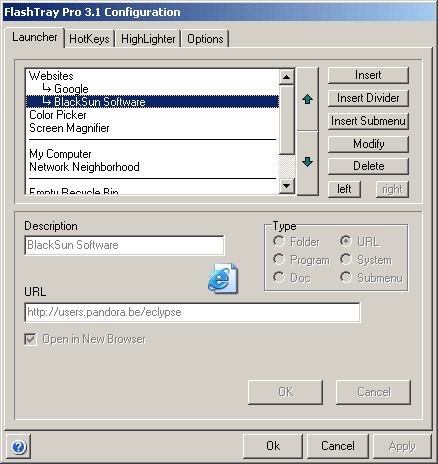
This screen is used to configure all the items that appear in the launcher popup menu.
Upper Part
In the upper part of this window there's an overview of the items in your launcher menu. The buttons of this screen have the following functions:
- Insert Item: This button lets you add all types except dividers.
- Insert Divider: Dividers can only be inserted with this button.
- Insert Submenu: This button is specific for Submenus, although they can also be added with the 'Insert Item' button (and then select the submenu type).
- Modify: This button enables the edit section of this screen where you can modify the properties of the item that is currently selected. In this lower part of the screen you can edit all the properties of your entry. Each different type of entry has different properties, which are described below.
- Delete: Deletes an entry from the list.
- Left: Lets you move an item up one level. You can only do this if the item is already in a submenu.
- Right: Lets you move an item down one level. This can only be done if there are submenus defined somewhere above in the list.
There are also two buttons immediately right of the list with an up/down arrow. These buttons can be used to move an item to a higher/lower place in the list. Beware that if you use submenus the level of the items can change when using these two buttons.
Lower Part
When you insert or modify an item, the lower screen is enabled where you can edit the properties of the item. There are 7 different types, each with its own properties:
1. Folder - opens any folder in Windows Explorer
| Description | Name that is displayed in the Launcher menu |
| Directory | Enter the name of the folder here (or press the button to browse for a folder) |
| Explore | Check this box to view the directory in explore-mode |
2. Program - any executable on your computer
| Description | Name that is displayed in the Launcher menu |
| Executable | Enter the name of the program here (or press the button to browse for a program) |
| Parameters | Enter the parameters with which you want to start the program. (optional) |
| Start in | Enter the directory in which you want to start the program. (optional) |
3. Document - any document that will be opened by its associated program
| Description | Name that is displayed in the Launcher menu |
| File Name | Enter the name of the document here (or press the button to browse for a document). This document will be opened with its associated program. |
4. URL (website address) - opened by the default browser on your system
| Description | Name that is displayed in the Launcher menu |
| URL | Enter the address of the webpage here |
| New Browser | Check this box if you explicitly want to open this page in a new browser. |
5. System command - a set of predefined system commands
| Description | Name that is displayed in the Launcher menu. This name is chosen from the following predefined set of system commands:
|
6. Submenu - used to organize your list with submenus
| Menu Name | Name that is displayed in the Launcher menu. |
7. Divider - used to separate groups of items that belong together
No properties available.
If you press 'OK' the changes will be applied in memory. By pressing 'Cancel' the changes will be lost. 'OK' and 'Cancel' will both return focus to the upper part of the screen.
Saving Changes
The three buttons at the bottom of the screen are used to apply or discard the changes that are made to all the FlashTray configuration items (Launcher, Hotkeys and Options).
- The OK button will apply all the modifications and write them to disk. The configuration screen will also be closed.
- The Cancel button will discard all the changes that are made since you called the configuration screen (or since you last applied any changes).
- The Apply button will apply all the changes, but keep the configuration screen open. This button will only be enabled when configuration changes have been made.
Copyright © 2001-2026 Blacksun Software. All Rights Reserved