FlashTray Pro 5.0
Hotkeys Configuration
Configuration of FlashTray is done by selecting 'Configure' from the popup menu. This will show the configure screen with three tabs.
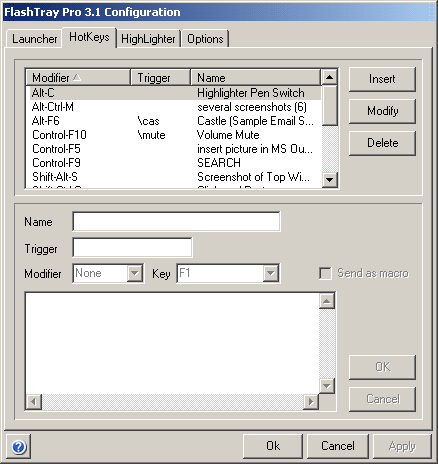
Upper Part
In the upper part of this screen there's an overview of the hotkeys. Here you can choose to insert, modify or delete a hotkey.
Pressing 'Insert' or 'Modify' will take you to the lower part of the screen where you can edit the properties of your hotkey. Pressing 'Delete' will simply remove the currently selected hotkey from the list.
Lower Part
In the lower part of the screen you can edit the following properties:
- Name - This name is only used so you can easily identify your hotkeys
- Trigger - Trigger that will be used
- Hotkeys - Key combination that will be used
- Macro Flag - Defines whether text needs to be interpreted as a macro or just as plain text
- Macro - (or text to send)
Once you are done entering or modifying these properties you have to press 'OK' or 'Cancel' to go back to the upper part.
- 'OK' will save the properties for that hotkey.
- 'Cancel' will ignore the changes for that hotkey.
Saving Changes
The three buttons at the bottom of the screen are used to apply or discard the changes that are made to all the FlashTray configuration items (Launcher, Hotkeys and Options).
- The OK button will apply all the modifications and write them to disk. The configuration screen will also be closed.
- The Cancel button will discard all the changes that are made since you called the configuration screen (or since you last applied any changes).
- The Apply button will apply all the changes, but keep the configuration screen open. This button will only be enabled when configuration changes have been made.
Copyright © 2001-2026 Blacksun Software. All Rights Reserved